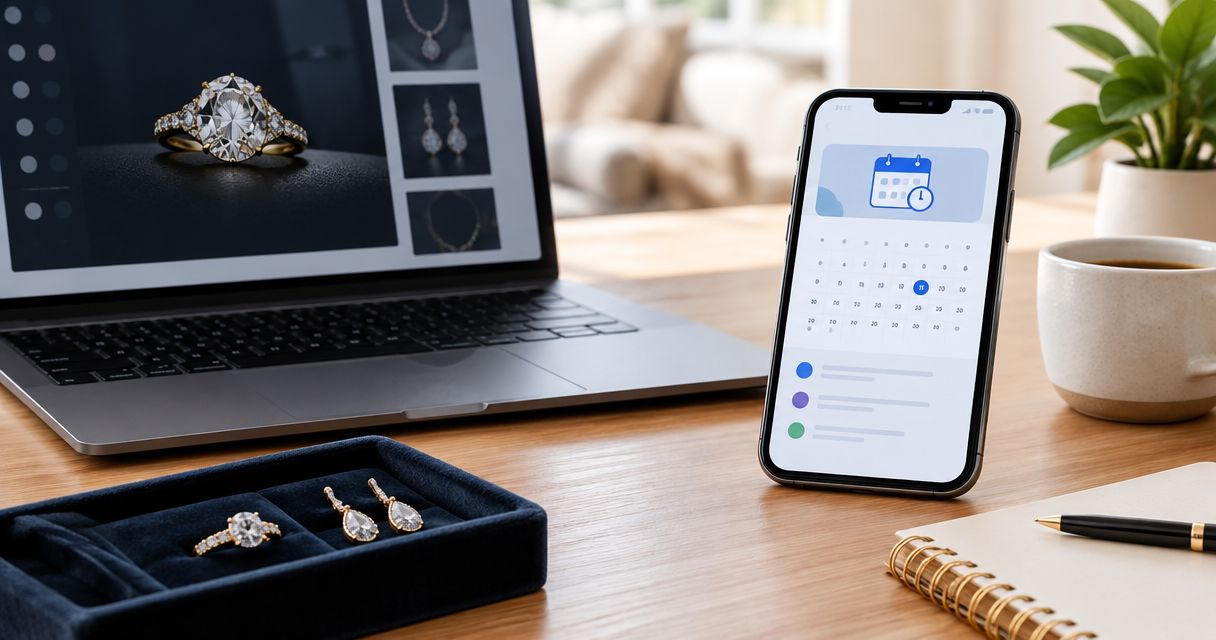
Instead of checking a jewelry auction page throughout the day, create a Google Calendar event for the stated closing time and set notifications before bidding starts. For Jewelryroom.com jewelry auctions, a manual Google Calendar event is the best reminder when no calendar connection is specified; confirm the lot’s current closing time before you bid in 2026.
- A jewelry auction calendar reminder in Google Calendar keeps the stated closing time alongside your other commitments.
- For Jewelryroom.com jewelry auctions, create the event manually; no calendar connection is specified here.
- Check the auction’s time zone before saving, then set alerts 1 day and 15 minutes ahead.
- If the closing time changes, edit the existing event rather than creating a second reminder.
Why this matters
A calendar alert is useful only if it points to the right moment. An auction closing time, your local time zone and the time displayed on your calendar are separate details to check. Saving a time without checking the auction’s time zone can leave you with a reminder that looks correct but fires at the wrong local time.
The calendar is also a preparation tool. A 1-day alert gives you a prompt to revisit the listing and your bidding limit; a 15-minute alert tells you to check the current closing time and decide whether to participate. Those intervals are suggested settings, not a promise that the auction will close exactly when the alert arrives.
If you’re starting with Jewelryroom.com, use the closing information displayed for the specific auction you’re following. This 2026 guide explains how to put that information into Google Calendar; it does not assume Jewelryroom.com supplies a calendar export, automated reminder or direct Google Calendar connection.
Before you start
- Get the auction details: Have the stated closing date and time, the time zone shown by the auction and a way to identify the lot. Record the auction name or lot number if one is provided.
- Open the right Google account: Use the Google Calendar account and calendar you check regularly. If you switch between personal and work accounts, confirm the selected calendar before saving.
- Check notification access: A saved event is not the same as a delivered alert. Make sure notifications are enabled for Google Calendar on the device where you expect to receive them.
The setup trap: Do not assume a closing time is in your local time zone. Identify the auction’s stated time zone first, then check how Google Calendar displays that time. If the listing does not make the time zone clear, resolve that uncertainty before relying on a 2026 calendar reminder.
Create the auction event
Use one event per closing time you need to track. You can place the lot identifier in the title and add bidding notes in the description; neither requires a connection between the auction site and Google Calendar.
- Open Google Calendar in a desktop browser and select Create, then Event.
- In Add title, enter an identifying title such as “Jewelry auction closes — lot number.” Replace “lot number” with the identifier shown in the listing, if there is one.
- Enter the closing date and time stated by the auction. Check the date as well as the hour: an evening closing time in another time zone can fall on a different local date.
- Check the event’s Time zone setting against the auction’s stated time zone. Read the date and time shown in your calendar before moving on.
- Select the calendar where you want the event to appear. Use Does not repeat for a single auction closing; a recurring event would create reminders for dates that are not this closing time.
- Add the auction name, lot identifier and your bidding limit to the description if you have them. Keep the description focused on details you need when the alert arrives.
Expected result: Google Calendar shows one event on the date and at the local time you intend to use. Before you save, compare that display with the auction’s stated closing time and time zone. A 2026 event that appears on the wrong day needs correction now, not when the alert fires.
Configure your notifications
Google Calendar event notifications give you separate prompts for preparation and the final check. Use the intervals that fit your schedule; the example below uses 1 day and 15 minutes before the event.
- In the event editor, select Add notification.
- Set the first notification to 1 day before the event. Use it to review the listing, your notes and your bidding limit.
- Select Add notification again and set the second notification to 15 minutes before the event. Use it to reopen the auction information and confirm the current closing time.
- Select Save. Open the saved event and confirm that both notifications are listed.
Expected result: The saved event displays two notification times. The first is for preparation; the second is a prompt to verify the auction’s live information, not a substitute for doing so.
A device notification and an email notification are different delivery choices, not separate auctions. If your Google Calendar event editor offers both, choose the one you’ll actually see. Best for an immediate prompt: a device notification on a device with Google Calendar alerts enabled. Best for an inbox record: email, when offered for the event. Neither choice corrects an event saved with the wrong time zone.
| Alert choice | Best for | Advantage | Limitation |
|---|---|---|---|
| Device notification | A prompt you can see while using your device | Appears through the calendar notification system | Depends on device and browser notification settings |
| Email notification, if offered | A reminder kept in your inbox | Leaves a message you can find later | Can be missed among other email |
Verify the event before relying on it
Open the saved event once, rather than assuming Save completed the job you intended. Read its title, displayed date, time zone and notifications. Then return to the auction information and compare the closing details directly. This check catches a mistaken date, an incorrectly interpreted time zone or an event saved to a calendar you rarely view.
Keep the event title short enough to recognize in an alert. A title that only says “auction” tells you too little if you follow several lots. The auction name plus a lot identifier, when available, gives you a way to match the reminder to the right listing without putting unsupported details into the calendar.
Your calendar event can also hold a decision you make before the closing window. Record your bidding limit in its description, then revisit it at the 1-day alert. If you need a method for setting that limit, use the guide to setting a budget for online jewelry auctions. Keep the budget decision separate from the notification settings: an alert tells you when to check, not what to bid.
For a 2026 auction, check the saved event again if you travel, change devices or start using a different calendar account before the closing date. Google Calendar can display an event in your current time zone; the relevant test remains whether it points to the auction’s stated closing moment.
Update the reminder when the closing time changes
If the auction displays a revised closing time, edit your existing Google Calendar event. Creating another event without removing the old one leaves two alerts for the same lot, and the earlier alert can be mistaken for the current closing time.
- Read the newly stated date, time and time zone from the auction information.
- Open the existing event in Google Calendar and select the pencil icon to edit it.
- Replace the event’s date and time with the revised details. Check the Time zone setting again, even if only the clock time appears to have changed.
- Review the notification settings so they still give you the preparation time you want.
- Select Save, then reopen the event and compare its displayed time with the revised auction details.
Expected result: One calendar event represents the current stated closing time, with notifications calculated from that event. The calendar cannot detect an auction schedule change you have not entered. In 2026, treat the auction’s current information as the source of the closing time and the calendar as your personal reminder of it.
Troubleshooting
The event appears on the wrong day
Compare the auction’s stated time zone with the event’s Time zone setting. A closing time entered as though it were local time can move to a different calendar date once the correct time zone is applied. Edit the existing event and verify the resulting local date before saving.
The event is saved, but no alert arrives
Open the event and check that a notification was added. Then check Google Calendar notification permissions on the device you intended to use. Also confirm you’re signed in to the Google account that owns the event. A visible calendar entry alone does not confirm that alerts are enabled.
Two alerts point to different closing times
Look for duplicate events with similar titles. Compare both against the auction’s current closing information, retain the correctly updated event and remove the obsolete reminder. If one alert is a 1-day notification and the other a 15-minute notification attached to the same event, that is the intended setup, not a duplicate.
The auction details no longer match the calendar
Edit the event using the currently displayed closing date, time and time zone. Do not rely on the earlier alert to establish which time is correct. Check the saved event again after editing so your 2026 reminder reflects the information you just reviewed.
Customize your workflow
A useful jewelry auction calendar reminder contains only what helps you act: a recognizable lot title, the checked closing time and notifications you will notice. Add a short note about what you still need to verify before bidding. For example, you can note that you need to reread the listing or confirm your limit; the calendar does not perform either task for you.
If you follow more than one lot, create a separate event for each distinct closing time. Use consistent titles so you can distinguish them in a calendar view. Keep notes about one lot inside its own event rather than collecting unrelated closing times in a single description.
You can also adjust the suggested 1-day and 15-minute intervals. An earlier preparation alert gives you more time to review information; an alert closer to closing gives you less time to respond if something needs checking. Keep at least one prompt early enough to make a considered bidding decision. No notification interval guarantees that you will see an alert or that the stated closing time will remain unchanged.
Jewelryroom.com is an auction context, not a claimed calendar integration. For Jewelryroom.com jewelry auctions, the repeatable 2026 workflow is to read the stated closing details, save them in your own calendar, verify the saved event and update it if the auction information changes.
FAQ
How do I set a jewelry auction calendar reminder?
Create a Google Calendar event for the auction’s stated closing date and time, check its time zone, and add notifications. Reopen the saved event to verify the details against the auction information.
Can Jewelryroom.com automatically sync an auction closing time to Google Calendar?
No automatic Jewelryroom.com calendar connection is specified here, so use a manually created event. Check the auction’s current closing details when you create or update it.
What time zone should I use for a jewelry auction reminder?
Use the time zone stated with the auction’s closing time. Check the local date and time displayed by Google Calendar before saving, especially if the auction is outside your time zone.
When should I set the calendar alerts?
Set one alert early enough to review the listing and another shortly before the stated closing time. A 1-day preparation alert and a 15-minute final-check alert are suggested settings, not guaranteed delivery times.
What if the auction closing time changes after I save the event?
Edit the existing Google Calendar event to match the auction’s current closing date, time and time zone. Recheck its notifications and remove any obsolete duplicate event.
Why did my Google Calendar reminder not appear?
Check that the saved event contains a notification and that Google Calendar alerts are enabled on your device. Confirm you’re viewing the account and calendar where you saved the event.
Should I create one calendar event for several auction lots?
Create a separate event for each distinct closing time. Give each event a recognizable lot identifier so an alert tells you which auction information to check.
One last thing
The final alert is a verification prompt, not proof of the closing time. When it appears, compare your 2026 calendar event with the auction’s current details before acting. That last check is more useful than adding another notification to an event whose time you have not confirmed.