
Instead of manually comparing auction tabs and scattered notes, build a Google Sheets jewelry auction bid tracker that keeps each lot, bidding ceiling, and next action in one row. This 2026 workflow calculates spending checks inside your spreadsheet; you still verify auction details and submit bids on Jewelryroom.com, not through Sheets.
- A Google Sheets jewelry auction bid tracker organizes lot research, spending limits, and auction outcomes.
- For Jewelryroom.com jewelry auctions, Google Sheets suits buyers who want a private bid log, not automated bidding.
- Use one row per lot, explicit currencies, and separate limits for bids and total spending.
- Spreadsheet formulas update your checks; auction bids and closing times require manual verification.
Why this matters
A bid tracker is a decision record, not a connection to the auction platform. Its job is to show what you researched, what you authorized yourself to spend, and whether the next bid passes those checks.
A spreadsheet cannot establish gemstone authenticity or confirm an auction result. Keeping evidence, amounts, and timestamps together makes those limits visible before you act.
For your 2026 auction records, separate the bid itself from additional charges. A bid below your bidding ceiling can still exceed your total spending limit once the applicable charges are included.
Before you start
- Access: Use a Google account with permission to create and edit a spreadsheet. Keep your auction account separate; never put passwords or payment credentials in the tracker.
- Materials: Gather each lot’s link, identifier, description, closing details, currency, condition information, and applicable charges. Leave unknown amounts blank rather than treating them as zero.
- The setup gotcha: Dates, decimal separators, and formula separators depend on spreadsheet settings. Open File, then Settings, and check Locale and Time zone before entering closing times. The formulas below use English function names and commas.
Choose one time zone for the tracker and convert auction closing times into it. Record the original auction time zone in a cell note when you need an audit trail.
Lot records
Build a small working sheet before adding more categories or automation. The starting structure uses 16 columns and 1 row per lot, keeping research and spending checks together.
- Create a blank Google spreadsheet and name it
Jewelry auction tracker 2026. - Rename the first sheet tab
Lots. Add a second tab namedHistory; these 2 tabs separate current decisions from past updates. - Enter the following headers across row 1 of
Lots, preserving their order because the formulas use these column letters.
| Column | Header | What you enter |
|---|---|---|
| A | Lot key | Auction identifier plus lot identifier |
| B | Lot link | The exact listing link you copied |
| C | Description | A short identifying description |
| D | Currency | The currency used throughout this row |
| E | Closes | Closing date and time in the sheet’s time zone |
| F | Status | Watch, Bid, Won, Lost, or Skip |
| G | Bid ceiling | Your maximum authorized bid |
| H | Current bid | The bid displayed when you checked |
| I | Next bid | The next amount you are considering |
| J | Extras | Applicable charges at that proposed bid |
| K | Projected total | Formula: next bid plus extras |
| L | All-in limit | Your maximum total spending for this lot |
| M | Decision | Formula: review, stop, or within limit |
| N | Checked at | A manually entered verification timestamp |
| O | Condition | Pending or Cleared |
| P | Report reference | Evidence reference and unresolved questions |
- Select row 1, then choose View, Freeze, and 1 row. Your headers will remain visible as you scroll.
- Select columns E and N and use Format, Number, Date time. Format G through L as numbers, keeping the currency explicit in column D.
- Enter a researched lot in row 2. Use a combined auction-and-lot key rather than a lot number alone, since different auctions can reuse lot numbers.
Expected result: Each lot has an identifiable source, a closing time, and its own spending limits. Unknown facts remain visible as blanks or unresolved notes.
Do not copy a listing’s entire description into the sheet. Record the identifying details and evidence references you need to distinguish similar pieces, then return to the source listing for the full text.
Bid checks
The bid check compares your proposed bid with two limits: the bid ceiling and the all-in spending limit. Neither limit should rise just because another bidder raises the auction amount.
- Select F2:F and choose Insert, then Dropdown. Add
Watch,Bid,Won,Lost, andSkip, then select Done. - Repeat for O2:O with
PendingandCleared. TreatClearedas your research decision, not a certification of authenticity. - In K2, enter this formula:
=IF(COUNT(I2:J2)<2,"",SUM(I2:J2))
- In M2, enter this decision formula:
=IF(A2="","",IF(OR(COUNT(G2:J2)<4,NOT(ISNUMBER(L2)),O2<>"Cleared"),"REVIEW",IF(OR(I2>G2,K2>L2),"STOP","WITHIN LIMIT")))
- Copy K2 and M2 down through the rows you plan to use. Keep those columns reserved for formulas.
- Enter nonnegative numeric amounts in G, H, I, J, and L. Enter zero in
Extrasonly when you have confirmed that no additional amount belongs there.
Expected result: REVIEW means required numeric inputs or condition clearance are missing. STOP means the proposed bid exceeds either spending limit. WITHIN LIMIT means the entered amounts pass those comparisons, not that the auction details are current.
The formula does not validate bid increments, currencies, closing times, negative entries, or auction status. Check those separately. In particular, Next bid must reflect an amount the auction actually accepts.
Recalculate Extras whenever the proposed bid changes if any applicable charge depends on the bid amount. Do not reuse charges calculated for an earlier amount or import a fee assumption from another auction.
Watchlist view
A usable watchlist puts unresolved research and approaching decisions in view. It must also preserve each row as a complete record when you sort.
- Select the full A:P range, including headers, and choose Data, then Create a filter.
- Open the filter in
Statusand keepWatchandBidselected for your active review view. - Use the filter in
Closesto sort A to Z, placing earlier closing dates first. - Select M2:M, open Format, then Conditional formatting. Under Format cells if, choose Text is exactly and create separate rules for
REVIEW,STOP, andWITHIN LIMIT. - Keep the written decision visible. Formatting should make the status easier to find, not replace its meaning.
Expected result: You see active lots in closing order, with incomplete checks and exceeded limits marked separately.
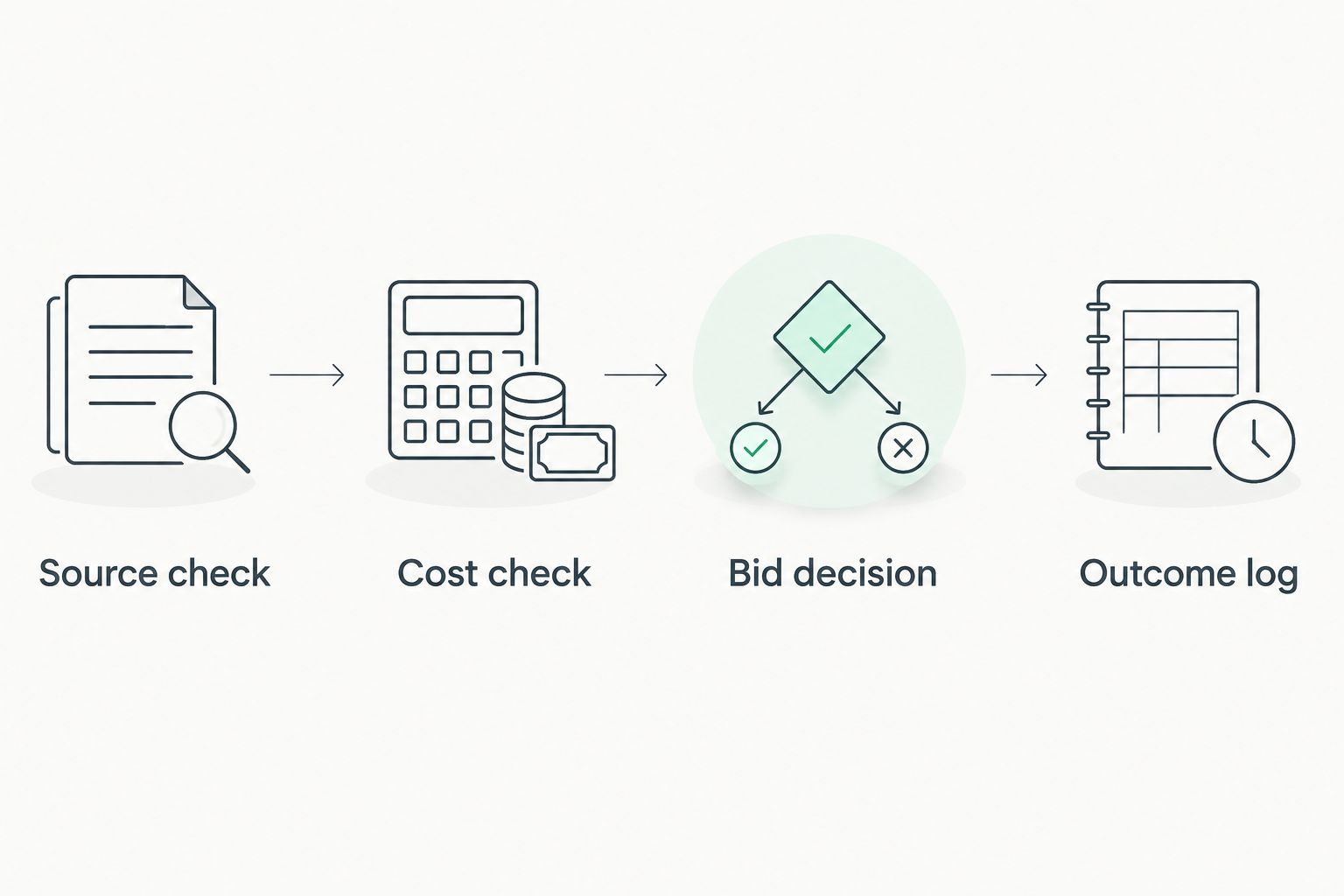
Use this sequence before every bid: Source check, Cost check, Bid decision, then Outcome log. Read the current auction listing first, update the relevant cells second, and place any authorized bid on the auction platform last.
For 2026 records, type a fixed date and time into Checked at after each verification. Do not use NOW() as evidence of when you last inspected a listing: that function recalculates rather than preserving your check time.
A green-looking row is not permission to bid. Confirm that the lot remains open, the next bid is valid, and the condition questions are resolved.
Outcome log
Keep final outcomes separate from your initial expectations. This makes the tracker useful after the auction without turning it into an accounting system.
- In
History, add these headers:Checked at,Lot key,Event,Observed bid,Proposed bid,Decision, andNote. - Before replacing important information in
Lots, append the previous checked values toHistory. Paste static values rather than formulas that reference the changing main row. - After bidding, record what you submitted and the platform’s confirmation in a history entry. Do not mark a lot
Wonbased only on being the leading bidder before closing. - After the auction confirms the result, change the main row to
WonorLost. UseSkipwhen you decide not to proceed. - Preserve the original bid ceiling and all-in limit. Add final invoice details separately rather than rewriting the original decision record.
Expected result: The main sheet shows the current state, while the history tab preserves changes and confirmed outcomes.
Keep personal payment information out of both tabs. An invoice reference is enough to connect a tracker entry with a separately stored document.
Second variant: update the tracker whenever a lot changes
Use an update-first workflow when you revisit the same lots repeatedly. It keeps one current row per lot while recording changes as separate history entries.
| Workflow | Best for | Advantage | Limitation |
|---|---|---|---|
| Snapshot tracking | A short watchlist reviewed occasionally | Less data entry and a simpler working view | Earlier observations disappear unless you log them |
| Update-first tracking | Lots checked repeatedly before closing | Preserves changing observations and decisions | Requires a history entry for each meaningful update |
For update-first tracking, find the existing Lot key before entering anything. Append a history entry, update the current bid and next bid, recalculate extras, and replace Checked at with the new verification time.
Google Sheets handles the calculations, not the auction synchronization. This 2026 setup does not automatically detect bids, closing extensions, listing revisions, or outbid events. Do not mistake a recalculated formula for refreshed auction data.
For Jewelryroom.com jewelry auctions, keep the auction listing as the source for bidding and the sheet as your private record. That separation gives you a useful log without assuming an unsupported integration.
Troubleshooting
The formula shows a parse error
Check the spreadsheet locale and the formula’s separators. Some locales require semicolons instead of commas; replace the argument separators consistently, and paste straight quotation marks rather than typographic quotation marks.
The total stays blank or the decision remains REVIEW
Confirm that G, H, I, J, and L contain numeric values, not text copied with currency codes or explanatory notes. Condition must also read Cleared; do not change it merely to remove the warning.
A lot link no longer matches its description
You sorted only part of the record. Use Undo immediately if the mistake just happened, then sort through the full-range filter; verify lot keys against their source links before bidding.
The sheet says WITHIN LIMIT, but the auction shows a different amount
The spreadsheet uses your last entered values. Recheck the listing, update the proposed bid and applicable charges, and replace the verification timestamp before relying on the comparison.
A closing time appears in the wrong place
Check whether the cell contains a real date-time value rather than text. Then confirm the sheet’s time zone and the conversion from the auction’s displayed time; changing display formatting alone does not convert a time zone.
Customize your workflow
Set the budget rule before expanding the tracker. Use the guide to setting a budget for online jewelry auctions to establish your spending boundaries, then enter the limits before bidding starts.
Add fields only when they change a decision: unresolved condition questions, report identifiers, or whether alternative lots compete for the same budget. Keep alternatives linked by a shared group label so you do not treat every acceptable lot as a separate spending commitment.
For shared tracking, distinguish fields collaborators can update from formula columns they should leave alone. Keep private bid ceilings out of any broadly shared watchlist.
FAQ
How do I make a Google Sheets jewelry auction bid tracker?
Create one row per lot with its source link, currency, closing time, bid ceiling, proposed bid, extras, and all-in limit. Add formulas for projected spending and decision checks, then verify the auction listing before bidding.
Does this tracker connect directly to Jewelryroom.com?
No. This workflow records information you enter from Jewelryroom.com and calculates checks within Google Sheets; it does not establish an auction-platform connection.
Can Google Sheets place jewelry auction bids for me?
This tracker does not place bids. Submit bids through the auction platform and record the confirmed action in your spreadsheet.
Why does my bid tracker show REVIEW?
The formula shows REVIEW when required numeric inputs are missing or the condition field is not Cleared. Check the underlying evidence and amounts rather than replacing missing information with assumptions.
Should I enter zero when shipping or other charges are unknown?
No. Leave unknown charges unresolved and obtain the applicable information before bidding; zero means you have confirmed no amount belongs in that field.
Can I track auctions in different currencies in one spreadsheet?
Yes, provided every amount within a lot’s row uses the same currency and the currency is explicit. Do not add amounts across currencies without a separately documented conversion method.
Does WITHIN LIMIT mean it is safe to bid?
No. WITHIN LIMIT means the entered amounts pass the spreadsheet’s spending comparisons; you still need to verify the current listing, condition evidence, accepted bid amount, and auction status.
One last thing
The most useful entry is often the bid you decided not to place. Keep skipped lots and record the reason: unresolved condition, exceeded ceiling, or competing spending commitments.
When reviewing your 2026 auction decisions, those records distinguish a deliberate stop from an unfinished task. Do not delete them just to make the watchlist shorter.