Instead of retyping every auction purchase, export jewelry auction invoices to QuickBooks through a reviewed purchase-record workflow: preserve the source invoice, map its charges, then record a bill or expense and match the payment. For 2026 bookkeeping, the first decision is whether you owe the auction seller—not which import button to use.
- To export jewelry auction invoices to QuickBooks, record purchases as bills or expenses—not customer invoices.
- Jewelryroom.com jewelry auctions serve auction buyers; this workflow does not assume a native QuickBooks integration.
- Keep lot references, buyer’s premium, tax, and supporting documents connected to each purchase.
- Test one purchase before processing a batch, and match payments instead of creating duplicate expenses.
Why this matters
A seller’s invoice is not a customer invoice in your books. When you buy jewelry, creating a QuickBooks customer invoice records the wrong side of the transaction: a sale rather than a purchase.
Jewelryroom.com is a jewelry-auction business. This guide covers the buyer’s bookkeeping process, not a claimed export feature, connector, or synchronization service offered by the auction site.
Jewelryroom.com jewelry auctions are best for buyers seeking an auction purchasing format, not accounting software. QuickBooks handles the bookkeeping after you establish what you bought, what you owe, and whether payment has cleared.
Keep personal collecting separate from business purchases. A business accounting file should not treat a personal jewelry purchase as ordinary business inventory merely because you have an auction invoice.
Before you start
- Access and source documents: Have permission to enter purchases in the correct QuickBooks company, plus the final auction invoice, lot references, payment evidence, and any adjustment documents.
- Accounting decisions: Confirm whether the jewelry is business inventory, another business purchase, or personal property. Have your bookkeeper approve the treatment of premiums, freight, insurance, and tax before building a reusable mapping.
- The mid-setup gotcha: A QuickBooks invoice import handles sales documents, not automatically the invoices you receive from suppliers. Check support for the required purchase transaction in your exact product, region, and subscription before preparing an import file.
The steps below use QuickBooks Online purchase-form terminology. Do not transfer the same navigation or file template to QuickBooks Desktop without checking its own requirements. For your 2026 setup, use the fields and import instructions displayed in your account rather than an old spreadsheet template.
Purchase record configuration
Choose the transaction type
- Read the final auction document and establish whether the purchase remains unpaid, is partly paid, or is fully paid. Use payment evidence, not the document’s title, to determine status.
- For an unpaid supplier purchase, open Bill in QuickBooks Online. A bill records the amount you owe before you pay it.
- For a purchase already paid directly, open Expense when that treatment fits your bookkeeping process. If a bill already exists, record payment against that bill instead of adding a separate expense.
- Confirm the correct business entity, supplier, transaction currency, and accounting period before entering the purchase.
Expected result: You have selected a purchase transaction that reflects the actual liability and payment status. You have not created a customer sales invoice.
| Purchase route | Best for | Advantage | Limitation |
|---|---|---|---|
| Bill followed by bill payment | Unpaid supplier purchases | Keeps the payable separate from its settlement | Requires a payment step and careful matching |
| Expense | Purchases paid directly without an existing bill | Records the paid purchase without leaving an open payable | Creates duplication if you also enter a bill |
| Supported purchase import | Repeat purchases with a compatible source file | Reduces repeated entry after mapping is tested | File support and required fields depend on your QuickBooks setup |
Use the bill route when you need an outstanding supplier balance. Use the expense route for a directly paid purchase only after checking that no bill or imported purchase already represents it.
These routes are alternatives, not steps to apply to the same purchase. Creating both a bill and an independent expense for the same auction invoice overstates the purchase unless you correct the duplication.
Source document configuration
Prepare the purchase data
- Preserve the original invoice as received. If your auction account provides a downloadable file, retain that file; otherwise, save the document supplied to you without changing its financial content.
- Build a working worksheet with supplier name, source invoice reference, invoice date, due date when stated, currency, lot reference, description, charge components, payment status, and document location.
- Separate the source-document reference from the lot reference. An invoice can cover multiple lots, so a lot identifier alone is not a reliable invoice identifier.
- Compare the worksheet against the final document before entering or importing anything. Stop if the invoice is provisional, disputed, or superseded by a corrected version.
Expected result: Every worksheet entry traces back to a final source document, with enough detail to distinguish the invoice from the individual jewelry lots.
For Jewelryroom.com purchases, use the documents actually supplied for your transaction. Do not assume an account offers CSV exports, an API, automatic email delivery, or a particular invoice layout.
Use 2 identifiers in your internal tracking: the supplier identity and the source invoice reference. Retain lot references as supporting detail. This makes it easier to distinguish a repeated invoice number from a different supplier’s legitimate purchase.
If you need to check which charges belong in the purchase total, review how to calculate total cost including buyer’s premium. The source invoice remains the document to reconcile against; a bidding worksheet is not a substitute.
QuickBooks field mapping
Enter and verify the purchase
- On a bill, select the correct Vendor and enter Bill date, Due date, and Bill no. from the source document where applicable. Do not invent a due date when the payment terms need clarification.
- Use Category details or Item details according to your approved accounting treatment. Preserve lot descriptions in the purchase detail rather than replacing them with a generic label that loses the connection to the jewelry.
- On an expense, confirm Payee, Payment account, and Payment date. The payment account must represent the account that actually funded the purchase.
- Add supporting documents in Attachments, review the transaction, and select Save and close only after the source total and recorded total agree.
Expected result: The saved purchase has the correct supplier, date, reference, accounting treatment, and supporting invoice. Its payment status reflects what actually happened.
Do not force every invoice component into an expense account. Jewelry acquired for resale needs an inventory treatment approved for your business; premiums and other acquisition charges also need consistent classification. Separately displaying a charge does not, by itself, determine its accounting treatment.
For purchase tax, distinguish tax charged by the seller from tax your business must assess or report separately. Do not apply a generic tax rule to every jurisdiction or assume a resale purchase is exempt without the required support.
Test before processing a batch
Start with 1 invoice in your 2026 workflow. Choose a final, understandable purchase rather than a disputed document or a transaction with unresolved adjustments.
Perform 3 checks before expanding the process: confirm the supplier and reference, compare the recorded total with the source document, and verify the payment status. Then inspect the relevant account balances to confirm that the purchase posted where your bookkeeper intended.
For a supported import, obtain the purchase template from your QuickBooks account and map your worksheet to its required columns. Do not rename a sales-invoice template and assume it becomes a bill import. Review rejected rows before retrying, and check which records succeeded first.
Payment reconciliation
Match the settlement
- For an unpaid bill, use Pay bills when recording its settlement. Select the existing bill rather than creating another purchase for the same payment.
- Compare the settlement with the invoice, including any separate payment charges, currency differences, credits, or partial payments shown in your records.
- When the payment appears in the bank feed, review the existing purchase or bill payment before adding a new transaction. Match the downloaded activity to the existing record when the details agree.
- Confirm that the supplier balance and bank activity reflect the same payment. Retain the payment reference alongside the invoice evidence.
Expected result: The purchase appears once, the payment appears once, and an unpaid balance remains only when money is genuinely still owed.
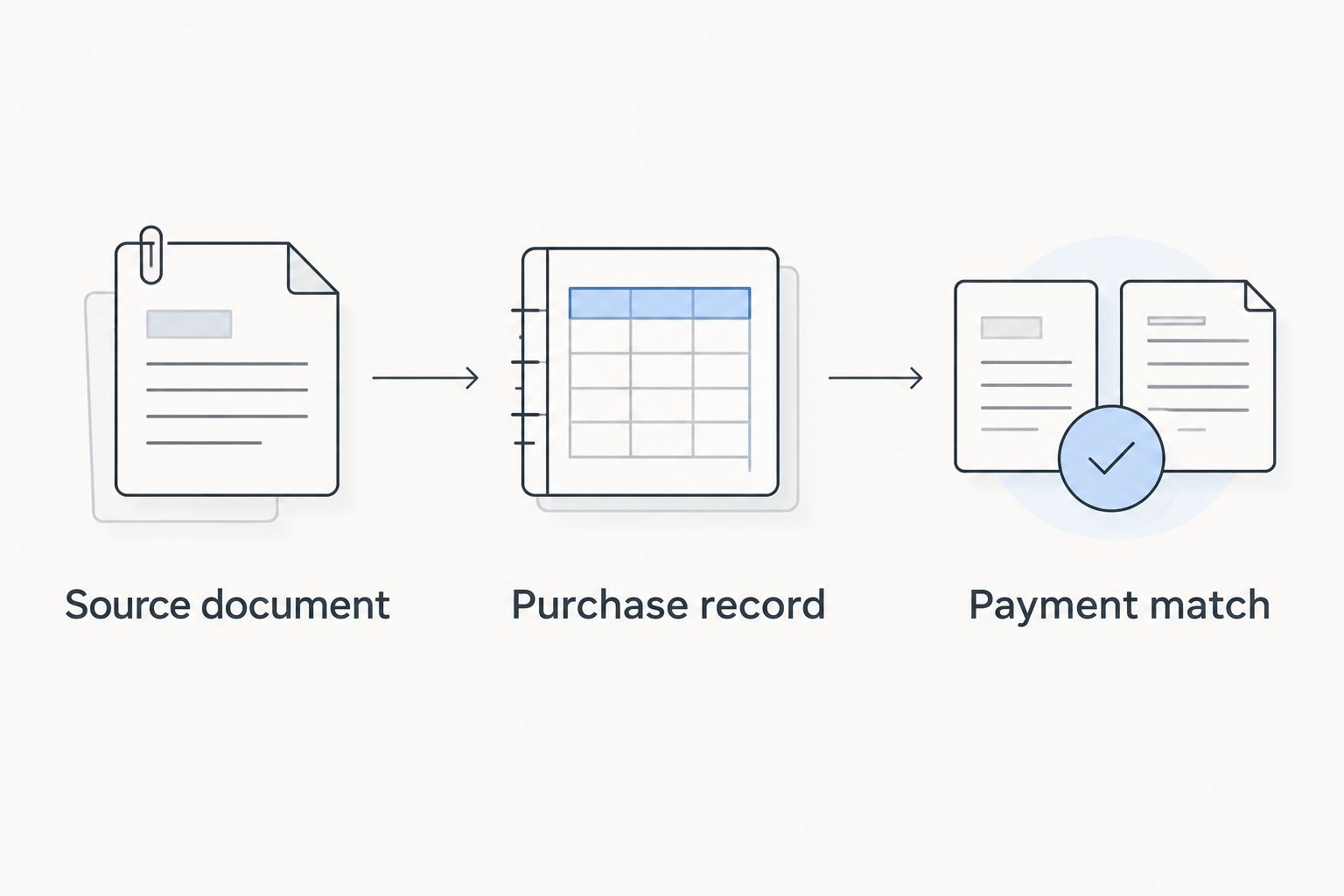
The repeatable sequence is Source document, Purchase record, and Payment match. Keep those stages separate: receiving an invoice, recording a liability, and settling it are different events.
Record changes whenever an invoice is updated
An updated document requires a review, not an automatic second purchase. This adjacent workflow matters when an auction seller corrects a charge, issues a credit, or changes the final invoice after an initial version reached your bookkeeper.
- Before entry: Replace the working worksheet with the final document’s details, while retaining the earlier version in your document history.
- After entry but before payment: Compare the revision with the saved purchase and follow your approved correction process. Check dates, amounts, tax, and supplier references again.
- After payment or reconciliation: Have your bookkeeper determine the appropriate credit, refund, or adjustment. Do not silently overwrite a reconciled transaction or change a closed period.
For a repeatable 2026 review process, track whether each source document is new, entered, paid, or revised. These are internal worksheet statuses, not claimed QuickBooks or auction-platform settings.
If you later add automation, require it to check for an existing supplier-and-invoice reference before creating a purchase. Route ambiguous revisions to review instead of treating every incoming document as a new liability.
Troubleshooting
The import accepts invoices but not supplier bills
Fix: Stop using the sales-invoice import. Confirm whether your account supports the required purchase import; otherwise, enter the purchase through the appropriate bill or expense form. A successful upload is not proof of correct accounting.
The supplier balance remains open after payment
Fix: Check whether the payment was recorded as an independent expense instead of being applied to the bill. Review both records before correcting anything, then verify that the bill payment and bank transaction represent the same settlement.
The purchase total differs from the bank withdrawal
Fix: Compare the invoice currency, settlement currency, payment charges, partial payments, and credits. Record the supported difference using your approved accounting treatment; do not alter the jewelry purchase merely to force a match.
A retry creates duplicate purchases
Fix: Check which records succeeded before rerunning the file. Compare supplier, source reference, date, and supporting document, then exclude completed records from the retry. Review duplicates before deletion, especially when payments are attached.
Multiple jewelry lots lose their individual references
Fix: Restore the lot-level descriptions from the source document and retain the full invoice attachment. If shared charges need allocation, apply your bookkeeper’s documented method consistently rather than dividing them arbitrarily.
Customize your workflow
Expand only after the basic purchase-and-payment sequence works. Add a document review owner, an exception queue for missing invoices, and a consistent file-naming convention that connects the source document to the purchase record.
For resale activity, preserve the link between the acquired lot and the item your business later sells. For a purchase covering multiple pieces, agree on the allocation method before recording subsequent sales; otherwise, purchase totals can reconcile while item-level costs remain unreliable.
Your 2026 process should also define who can change a saved purchase and who reviews changes after payment. Automation should reduce retyping, not remove approval of unfamiliar suppliers, unexplained charges, or revised documents.
FAQ
How do I export jewelry auction invoices to QuickBooks?
Preserve the auction invoice, map its purchase details, and enter or import a supported bill or expense transaction. Verify the supplier, total, and payment status before processing more documents.
Should a jewelry auction purchase be a QuickBooks invoice or bill?
An unpaid supplier purchase belongs on a bill, not a customer invoice. A purchase paid directly can use an expense when no existing bill already represents it.
Does Jewelryroom.com automatically sync invoices with QuickBooks?
This workflow does not establish an automatic Jewelryroom.com-to-QuickBooks connection. Use the purchase documents supplied for your transaction and confirm any proposed integration before relying on it.
Can I import an auction invoice PDF directly into QuickBooks?
A PDF attachment is supporting evidence, not proof that a purchase has been recorded correctly. If your account offers document capture, review the extracted fields and resulting transaction before accepting it.
How should I record a buyer’s premium on jewelry bought for resale?
Use the acquisition-cost treatment approved by your bookkeeper for your business. Preserve the premium separately in the supporting data so its classification and allocation remain traceable.
How do I avoid recording an auction payment twice?
Check for an existing bill, expense, or bill payment before adding bank-feed activity. Match the downloaded payment to the existing transaction when the details agree.
What should I do when an auction invoice changes after payment?
Retain the revised document and have your bookkeeper determine the correct adjustment, credit, or refund treatment. Do not overwrite a reconciled purchase without reviewing the accounting period and payment history.
One last thing
A balanced bank account does not prove that your jewelry purchases are classified correctly. A payment can reconcile while the underlying purchase sits in the wrong account or lacks the lot detail needed for resale records. Review the purchase record as carefully as the payment match.