
Instead of repeating the same jewelry search every day, use a saved-search notification wherever the auction platform supports it so matching lots reach you automatically. This guide explains how to define the search, check notification controls, test delivery, and keep new-lot alerts separate from bidding reminders.
- Jewelry auction saved search alerts support discovery; they do not replace condition checks or bidding decisions.
- For Jewelryroom.com buyers, confirm the current search and notification controls before planning an automated workflow.
- Save a useful search first, then enable its supported notification channel and verify delivery.
- Use saved searches for new lots and separate lot-specific reminders for pieces you already identified.
Why this matters
A useful alert starts with a useful search. Automating a vague phrase gives you more results to reject; adding too many restrictions excludes pieces you would have considered.
For Jewelryroom.com jewelry auction buyers, the best alert workflow separates discovery from bidding. Start at Jewelryroom.com and check the current account and search controls before choosing your setup. A search box, a bookmarked results page, and a notification subscription are different things.
For your 2026 setup, treat delivery and relevance as separate checks. Receiving a message proves that the delivery path worked, not that the search captured everything you wanted.
Before you start
- Account and access: Have access to the auction account and the inbox or device you intend to use. Sign in before checking whether search-saving and notification controls exist.
- Search materials: Write down the jewelry type, gemstone or material, and characteristics that actually determine your interest. Use listing language rather than a long description of your ideal purchase.
- The setup gate: Confirm that saving a search also offers notifications. A saved search or browser bookmark does not, by itself, establish an automated alert. If no notification control exists, use a bookmarked search with a calendar reminder instead; that is a manual fallback, not automatic matching.
Do not connect an outside automation service simply because the platform lacks an obvious alert control. First establish that the auction platform provides a supported feed, integration, or notification mechanism for the information you need.
Search criteria
Define the match before saving it
- Choose the jewelry type. Start with the object you want, such as a brooch, ring, necklace, or pair of earrings. Avoid combining unrelated collecting interests in the same search.
- Add the defining material. Include the gemstone or metal only when it is essential to your decision. For example, use a phrase such as emerald brooch as a starting query, not a complete description of every acceptable feature.
- Inspect the results. Read titles and descriptions. Note which words distinguish relevant pieces from lookalikes or unrelated objects.
- Adjust one criterion. Remove a restriction when results are too narrow, or add a meaningful term when results are irrelevant. Keep a short note of what changed.
Expected result: You have a search that returns pieces worth reviewing, plus a written explanation of what makes a result relevant.
Start with 2 search versions: a focused phrase and a broader phrase. This is a setup recommendation, not a platform limit. Keep only the versions that serve different purposes.
Do not assume quotation marks, exclusion symbols, or Boolean operators work. Use special search syntax only when the platform explains its behavior. Otherwise, enter ordinary descriptive terms and judge the actual results.
Choose the right discovery method
These methods solve different problems. Check which controls the auction platform actually provides before selecting one.
| Method | Best for | Advantage | Limitation |
|---|---|---|---|
| Saved-search notifications, where supported | Discovering newly matching lots | Reuses criteria without repeating the search manually | Depends on supported matching rules and delivery settings |
| Lot-specific notifications, where supported | Following a piece already identified | Keeps attention on a known lot | Does not discover other matching pieces |
| Bookmarked search with a calendar reminder | Maintaining a search routine without native alerts | Keeps your search easy to reopen | Requires you to inspect results manually |
Choose the method by its job, not its name. A control that follows an individual lot is not a substitute for a search subscription.
Notification configuration
Connect the search to a delivery channel
- Open the relevant results while signed in. Confirm that the displayed search still contains your intended terms and filters.
- Locate the search-saving control, if provided. Read its description before using it. Check whether it saves only the query or also offers notifications about matching lots.
- Select the supported delivery channel. Use only the channels actually offered for that search. Do not assume that email, text messages, and app notifications are interchangeable or all supported.
- Check the destination. Confirm the account email address or other destination associated with the selected channel. Complete any verification requested by the platform.
- Review the saved configuration. Reopen the saved search or notification preferences and confirm that the criteria and delivery selection persisted.
Expected result: The saved search remains accessible, and its notification configuration shows the destination you intended.
Use the current interface wording during your 2026 setup. Search-saving controls and notification preferences are separate checks; do not interpret a successful save as proof that messages are enabled.
If the platform offers frequency choices, select a supported schedule you will actually review. Do not interpret a digest as an immediate alert, and do not assume an immediate notification option exists.
Keep the settings understandable
Give the search a descriptive name if naming is supported. Prefer a phrase that explains the object and defining material over a generic label such as favorites.
Keep overlapping searches deliberate. A broad gemstone search and a narrower jewelry-type search can serve different purposes, but identical searches under different names add confusion. Record which search is for discovery and which is for focused buying research.
Delivery validation
Test the workflow before relying on it
- Verify persistence. Leave the search screen, return to it, and check that the saved criteria remain intact.
- Inspect the delivery settings. Confirm that the selected channel remains enabled and that the destination is correct.
- Use a test function only if offered. Follow the platform's instructions. Do not expect a test button or a sample notification to exist.
- Compare the next received alert with the live listing. Open the auction site independently when a message looks suspicious. Check that the referenced lot matches your intended criteria.
- Record the outcome. Note whether the message arrived, whether its contents were relevant, and whether the destination was convenient to check.
Expected result: You can distinguish a configuration that is saved from a delivery path that has actually been observed working.
Run 3 validation checks: saved criteria, enabled delivery, and a relevant received message. These are workflow checks, not a promise that new matches will appear on a schedule.
The sequence below keeps setup and verification separate. Do not skip verification because the saved search looks correct.
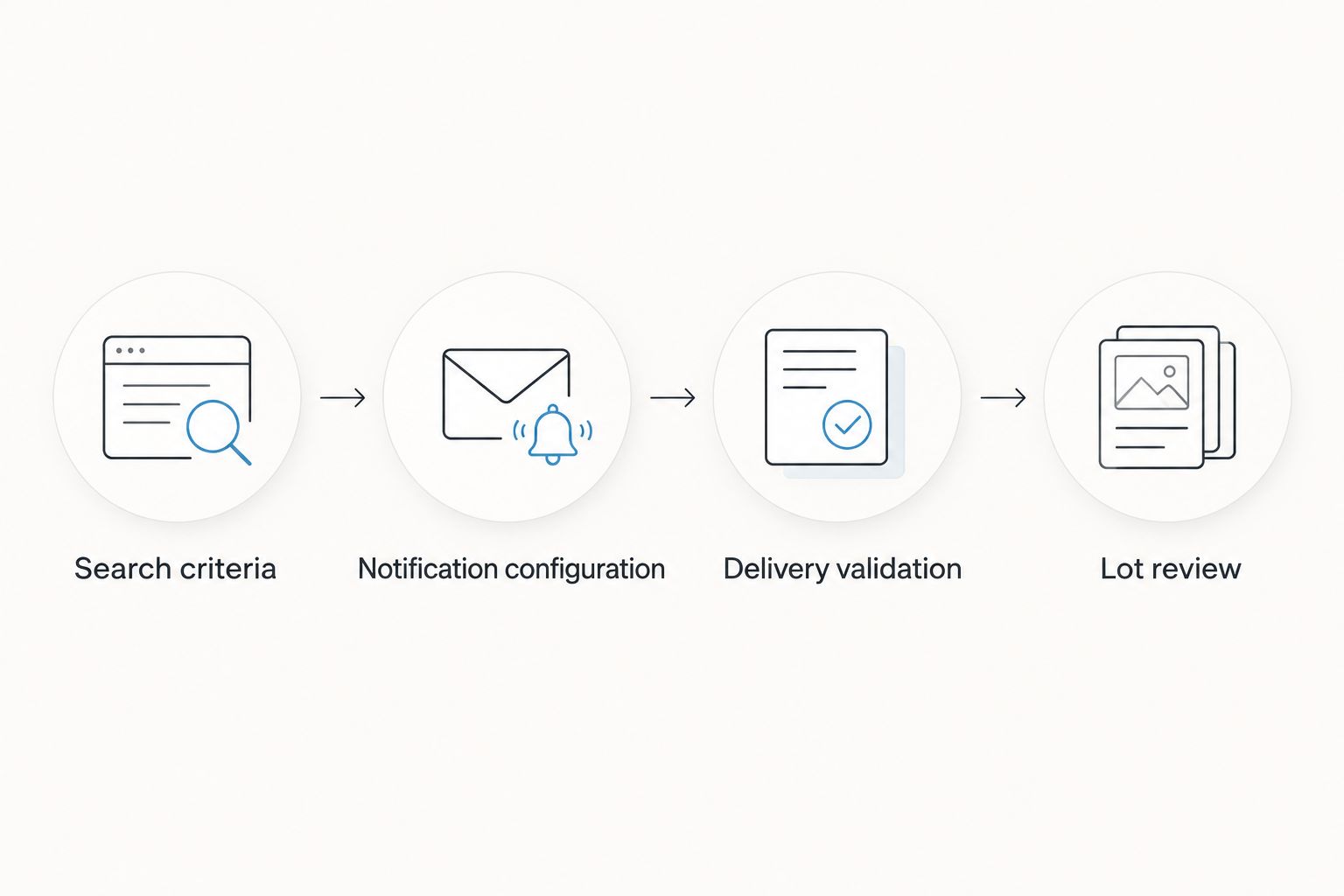
During your 2026 verification, distinguish a test message from a genuine match notification. A test establishes delivery only; a real alert also lets you assess the search criteria.
Lot review
Turn a matching alert into a research task
- Read the complete listing. Check the description rather than relying on the notification preview or thumbnail.
- Identify unresolved details. Note questions about condition, dimensions, materials, attribution, or documentation that affect your decision.
- Request clarification before bidding. Use the seller's stated inquiry process. The guide to getting a condition report before bidding explains the next research task.
- Check the closing details independently. Read the lot's current auction information instead of treating the notification timestamp as a deadline.
- Decide whether to follow the lot. Use supported lot-specific reminders only after the piece passes your initial review.
Expected result: Each useful alert produces either a documented rejection, a request for information, or a lot worth following.
A keyword match is not evidence of authenticity, condition, or suitability. Even an exact phrase match needs review in its full listing context. Keep the discovery workflow separate from your buying decision.
Second workflow: follow an identified lot
A saved-search alert answers whether a new matching lot has appeared. A lot-specific notification answers a different question about a piece you already know.
When the platform provides lot-following controls, open the individual listing and inspect the events those controls cover. Select only the supported events you need. A general follow action does not establish that every description change, auction event, or bidding change will trigger a message.
For this 2026 workflow, keep discovery subscriptions active only while you are still searching. Once you identify a serious candidate, put your research notes and any supported lot-specific reminders together.
Best for focused bidders: Use search notifications to find candidates, then use supported lot notifications to follow selected pieces. The advantage is a clearer division of tasks; the limitation is that each notification type needs its own settings check.
If no lot-specific notification exists, create a calendar reminder using the listing's stated closing details. That reminder requires manual entry and does not monitor subsequent listing changes.
Troubleshooting
The search is saved, but no message arrives
Reopen the saved search and check whether notifications are separately enabled. Confirm the destination, inspect spam or filtered folders, and read any stated delivery schedule. No message alone does not prove failure: first establish whether a new matching lot appeared after activation.
Notifications contain irrelevant jewelry
Compare the unwanted listings with your search terms. Replace a vague term with the jewelry type or defining material, then inspect the results again. Change one criterion at a time so you can identify what improved relevance.
A relevant lot appears without an alert
Open the saved query and compare it with the listing's actual wording and attributes. Remove an unnecessary restriction or create a broader discovery search. Also check the documented trigger: do not assume that an existing lot edited later is treated as a newly added match.
The same lot appears in several messages
Inspect overlapping saved searches and the notification source. Keep separate searches only when each has a distinct purpose. Before changing delivery settings, establish whether the messages come from different searches or different notification types.
Email arrives, but the device stays silent
Check your email application's notifications, device permissions, and focus settings. Email delivery and a device notification are different events. Test the device's behavior separately rather than rebuilding a saved search that is already delivering messages.
Customize your workflow
Organize searches around decisions: a gemstone you collect, a jewelry type you wear, or a specific research interest. Avoid creating another subscription whenever you encounter an interesting adjective.
For Jewelryroom.com jewelry auction research in 2026, keep a simple record of each search's purpose, criteria, delivery destination, and last successful check. Remove searches that no longer serve a buying goal.
Use 1 change per review when tuning a search. This recommended limit makes the effect easier to interpret; changing the phrase, filters, and delivery settings together obscures the cause of a problem.
FAQ
How do I set up jewelry auction saved search alerts?
Create a useful search, save it where supported, and enable the notification options attached to that search. Confirm the destination and verify a received matching-lot message before relying on the workflow.
Does saving a jewelry search automatically turn on alerts?
No, saving a search does not by itself establish that notifications are enabled. Check whether the platform provides a separate notification setting for the saved query.
Can I get jewelry auction alerts by text message?
Use text messages only when the auction platform explicitly offers them for the notification you need. Do not assume that email notifications imply text-message support.
Why am I not receiving saved-search emails?
Check the notification setting, destination address, filtered folders, and stated delivery schedule. Also confirm that a new matching lot appeared after the subscription was activated.
Is a saved-search alert the same as an outbid alert?
No, saved-search alerts concern matching lots, while outbid alerts concern bidding activity on an identified lot. Configure each separately where the platform supports it.
Will an alert tell me whether a gemstone is authentic?
No, a search match does not authenticate a gemstone. Review the listing, supporting documentation, and unresolved questions before deciding whether to bid.
What should I do if an auction site has no saved-search notifications?
Bookmark the useful search and schedule a calendar reminder to review it manually. This preserves a repeatable routine but does not automatically detect new matching lots.
One last thing
Test what the alert notices, not just where it arrives. An existing listing that gains your keyword later is different from a newly published matching lot; check the platform's stated trigger before expecting both to generate notifications.
That distinction keeps a quiet inbox from becoming false reassurance. Continue direct review when your buying decision depends on information the alert does not monitor.