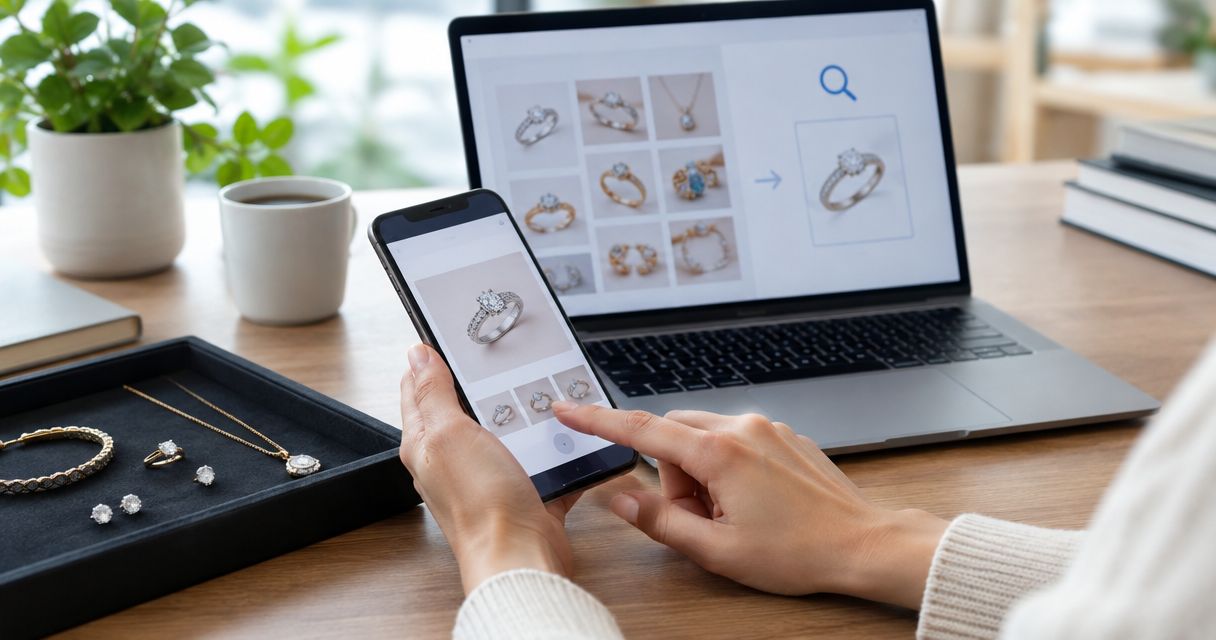
Instead of manually hunting for the same jewelry photograph across auction listings, use Google Lens to search the full image and a detail crop, then record the source pages beside your lot notes. This reverse image search jewelry auction photos workflow traces image reuse; it does not authenticate the jewelry or connect to your auction account.
- For Jewelryroom.com buyers, reverse image search jewelry auction photos is a research check, not gemstone authentication.
- Use Google Lens with the full photograph first, then search a crop of distinctive jewelry details.
- Compare source pages and physical features; matching photographs do not prove matching ownership or condition.
- Save source-page addresses, search dates, and unresolved questions before deciding whether to bid.
Why this matters
A photograph can appear in an earlier auction catalog, a retailer's listing, or an unrelated page. Finding that reuse gives you a question to investigate, not an automatic verdict about the seller.
For Jewelryroom.com jewelry auction buyers, reverse image search is best for tracing photo reuse, not authenticating gemstones. Apply the same distinction when researching a lot on Jewelryroom.com: the image search supplies leads, while the lot description, supporting documents, and seller's answers need separate checks.
Keep your 2026 research focused on a narrow question: where else does this photograph appear, and what does that page actually establish? A visually similar ring is not necessarily the same object, and an identical photograph does not establish who currently owns it.
Before you start
- Prepare the image and listing context. Keep the lot page open and save the photograph if permitted. Otherwise, capture a screenshot for your research without including account details or personal information.
- Use a desktop browser and a research log. Open Google Images and prepare a spreadsheet or document. This workflow uses Google Lens separately from the auction site; it requires no auction-account connection.
- Watch the image-address trap. A lot-page address is not the same as a direct image address. Uploading a saved image avoids submitting a page link that the image search cannot use as a photograph.
Keep the original photograph unchanged. Make separate crops so you can return to the full context, including a display stand, watermark, or background that helps distinguish an exact image reuse from a similar design.
Do not upload private appraisals, invoices, identification documents, or photographs containing personal information. Only submit material you are authorized and comfortable sharing with the search provider.
Image preparation
Prepare your reference files
- Open the lot photograph at the largest size the listing provides. Examine the image itself rather than enlarging a small thumbnail indefinitely.
- Save 1 original image with a filename that identifies the lot. Preserve the listing address in your notes because the image file alone does not retain the seller's explanation.
- Create 2 separate crops: one showing the complete jewelry piece without surrounding page clutter, and another showing a distinctive feature. Useful details include an unusual clasp, asymmetric setting, engraving, or visible wear.
- Keep the original and crops together as 3 image files for that lot. Label them clearly as original, object, and detail rather than overwriting the source file.
Expected result: you have a full-context photograph and focused alternatives, all tied to the correct lot.
Do not sharpen, recolor, remove watermarks, or generate missing details. Those edits change the evidence you are trying to compare. A crop isolates existing information; it does not create a clearer view of a hallmark that was unreadable in the original.
Choose the search input
Use the full photograph before narrowing the search. Each input answers a different question, so treat them as complementary checks rather than competing authentication methods.
| Search input | Best for | Advantage | Limitation |
|---|---|---|---|
| Full photograph | Finding reuse of the listing image | Retains background, framing, and presentation clues | Surrounding objects can distract visual matching |
| Object crop | Finding visually similar jewelry | Removes page clutter and emphasizes the overall design | Common settings can produce unrelated lookalikes |
| Detail crop | Comparing distinctive construction | Focuses attention on a clasp, motif, or unusual feature | A small or blurry detail provides little usable information |
Start broad, then isolate the feature that makes the piece distinguishable. Searching only a gemstone close-up removes the setting and construction details that help you compare objects.
Google Lens search
Upload the original photograph
- Open Google Images in your desktop browser.
- Select the camera icon labeled Search by image beside the search field.
- Select upload a file, then choose your saved original photograph. Use the file picker rather than pasting the auction listing address.
- Inspect the results and open promising source pages. Do not treat a result thumbnail or search-generated description as the underlying evidence.
- Repeat the upload with the object crop. Compare whether removing the background produces more relevant jewelry matches.
Expected result: you have candidate source pages to inspect, or a recorded search that produced no useful matches. Neither outcome establishes authenticity.
For your 2026 research log, record the day you performed the search. Results are not a permanent inventory of every page containing an image, so the date describes what you checked at that point.
Refine the visual comparison
- Search the detail crop separately. Keep enough surrounding structure to show where the detail belongs on the piece.
- Add descriptive text in the search field if visual results are too broad. Describe observable features, such as an oval green stone and a split shank, rather than asserting an unverified maker or gemstone identity.
- Open the candidate page and compare the full photograph with your original. Look for identical reflections, shadows, background texture, and object orientation.
- Compare the jewelry itself: prong layout, stone arrangement, engraving placement, clasp construction, and visible damage.
- Separate an identical photograph from a similar design in your notes. These findings support different follow-up questions.
Expected result: each useful result has a defined relationship to your listing instead of a vague label such as suspicious or authentic.
A matching scratch or unusual setting detail deserves closer inspection. A shared halo shape or stone color is much weaker evidence because it does not uniquely identify an object.
Evidence log
Create the record before drawing conclusions
- Create a spreadsheet tab named Photo research 2026. This is your own label, not an auction-site feature.
- Add these column headings: Lot reference, Listing address, Image filename, Search date, Source page, Match type, Observed details, and Next action.
- Use 1 row per source page so separate matches do not become an unreadable collection inside a single cell.
- Enter observable facts under Observed details. Record that the same background and reflections appear, for example, rather than writing that the seller copied the photo.
- Under Next action, write the question the evidence creates. Ask for a current underside photograph, clarification of a conflicting description, or documentation supporting a maker attribution.
Expected result: every concern leads to a specific request you can resolve before bidding.
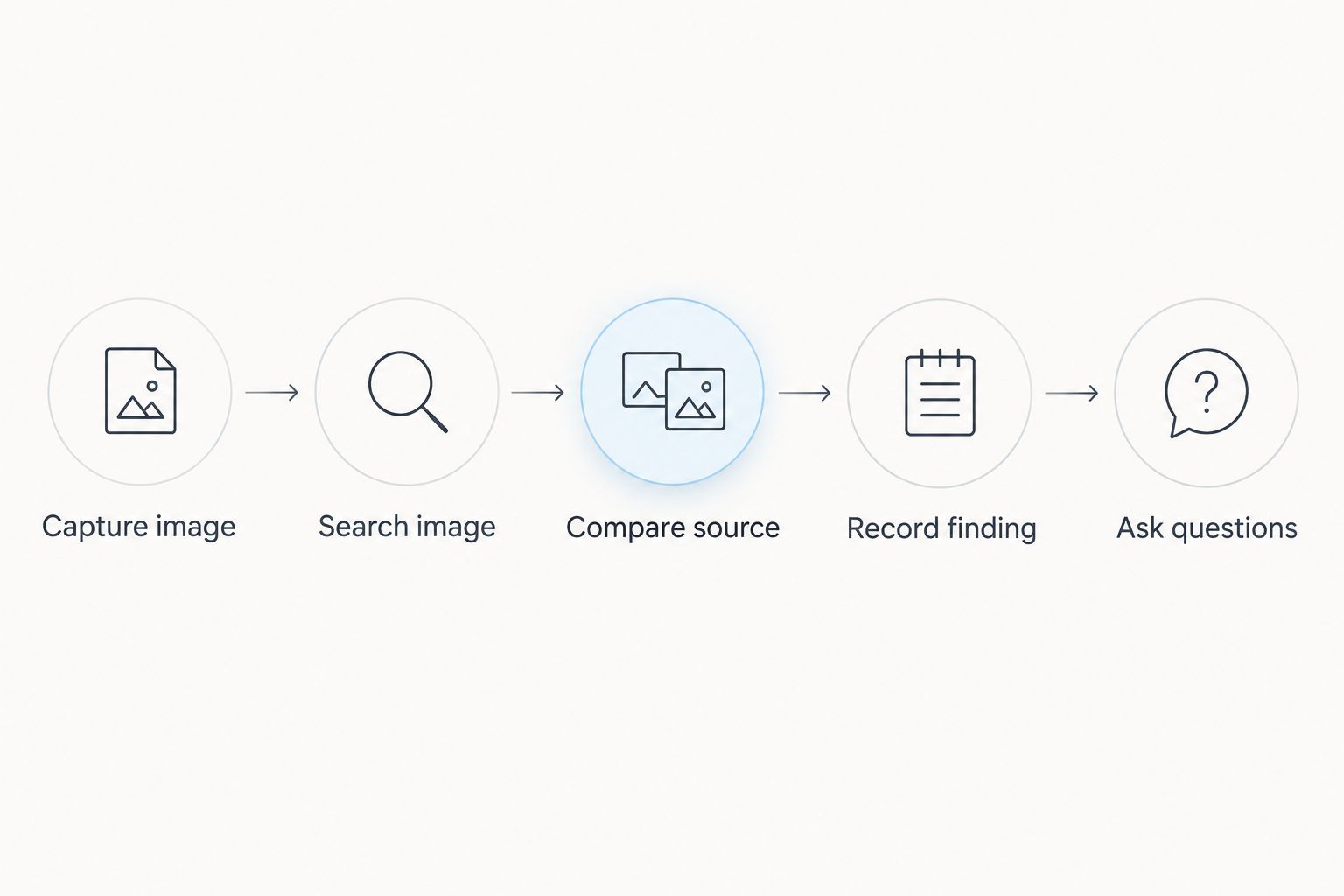
The sequence matters: capture the image, search it, compare the source, record the finding, then ask a question. Do not jump directly from a matching thumbnail to a conclusion about the lot.
Turn findings into a bidding decision
An earlier page showing the identical photograph raises questions about the image's history. It does not prove that the current lot is counterfeit, that the earlier page was the original source, or that either seller owned the jewelry.
Ask for evidence that connects the current listing to the current object. Request a view that answers the actual discrepancy, such as the underside, clasp, hallmark, or area of reported damage. A new angle is more useful than another copy of the same promotional photograph.
For Jewelryroom.com jewelry auction research, keep image findings separate from condition findings. Use the guide to getting a condition report before bidding when a visual match leaves questions about wear, repairs, or missing details.
If the answer does not resolve a material conflict, leave the question marked unresolved. Your research log should reflect uncertainty rather than convert incomplete evidence into confidence.
Repeat the check when listing photos change
A second workflow is useful when the seller adds a new angle or replaces a photograph. Recheck the changed image rather than assuming the original search covers it.
- Save the new photograph separately and retain the earlier version.
- Add a new entry to your Photo research 2026 tab with the search date and a note describing the change.
- Search the new full image, followed by a crop of any newly visible identifying detail.
- Compare the new view with both the listing description and the earlier image.
- Update the next action only after checking whether the new photograph actually answers your question.
Expected result: you have a traceable record of what changed and what remains unresolved.
This is a manual recheck, not an automatic monitoring integration. Saving a lot or keeping its address in a spreadsheet does not make Google Lens watch for new photographs.
Troubleshooting
The image address does not work
Upload a saved copy instead of submitting the lot-page address. Pages requiring sign-in and image links that expire are poor inputs for a repeatable workflow; retain the local research file and the source-page address separately.
Results show generic rings or necklaces
Use the object crop, then isolate a distinctive construction detail. Add observable descriptive words, but avoid an unverified designer name that turns your search into a hunt for confirmation.
The same photograph appears under conflicting descriptions
Open each source page and record the conflict exactly. Ask the current seller to explain the discrepancy and provide supporting evidence; do not choose whichever description makes the lot more appealing.
Search finds nothing useful
Record No useful match, not Verified original. Try a different listing angle or crop, then continue with condition, hallmark, and document checks rather than treating an empty result as reassurance.
A result exists, but the source page is unavailable
Mark the result as unconfirmed and retain your observation without treating it as established history. A thumbnail without accessible context is not enough to support a provenance claim or an allegation against a seller.
Customize your workflow
Make photo research a repeatable gate in your 2026 buying checklist. Search before committing to a bid, document material discrepancies, and decide which unanswered questions prevent you from proceeding.
For a long shortlist, organize files by auction and lot reference. Keep the image filenames consistent with the spreadsheet so a saved detail crop cannot accidentally become evidence for the wrong piece.
Add separate fields for condition questions and document checks if you need them. Keep those fields distinct from image-match status: a reused photograph, a gemstone report, and an inspection answer different questions.
Use Jewelryroom.com as the auction destination, not as a substitute for your evidence record. Keep your research accessible outside the listing so your decision remains understandable after the page changes.
FAQ
How do I reverse image search jewelry auction photos?
Upload the photograph to Google Lens through Google Images, inspect candidate source pages, then repeat with an object or detail crop. Record what matches and what the source page actually establishes.
Can I connect Google Lens directly to my auction account?
This workflow uses Google Lens separately from your auction account. You upload an image and maintain your own research log; the steps do not create an account integration.
Does a matching auction photo mean the jewelry is fake?
No. A matching photograph establishes image reuse, not whether the jewelry is genuine or who currently owns it. Ask for current photographs and documentation that address the specific concern.
What does it mean when reverse image search finds no matches?
It means the search did not return a useful match for that image. It does not prove the photograph is original, the seller owns the piece, or the gemstone is authentic.
Should I search the whole jewelry photograph or crop it?
Search the whole photograph first, then search crops. The original preserves image-reuse clues, while an object crop or distinctive detail helps you compare the jewelry itself.
Can reverse image search authenticate a diamond or identify gemstone treatments?
No. Visual similarity cannot establish diamond authenticity or gemstone treatment status. Check the relevant documentation and obtain qualified assessment when the buying decision requires it.
What should I do if a jewelry photo appears on several websites?
Compare the source pages, descriptions, and identifying details before drawing a conclusion. Record conflicts and ask the current seller for evidence connecting the listing to the object being offered.
One last thing
The most useful follow-up photograph is the one that answers a specific question. If your concern is a repaired clasp, another front-facing image does not help. Ask for the clasp, then compare the response with the evidence already in your log.