
Instead of retyping auction details into product listings, move jewelry auction wins to Shopify inventory through a draft-first workflow: record the purchase, inspect the piece, create its product record, and enter the verified quantity. Keep publication separate from intake so an auction description never becomes an unchecked retail claim.
- Move jewelry auction wins to Shopify inventory through purchase records, inspection, draft products, and verified inventory quantities.
- For Jewelryroom.com jewelry auction buyers reselling through Shopify, a draft-first intake workflow is the best fit.
- Give each independently sold piece a unique SKU and preserve its source documents.
- Use Shopify product drafts for preparation; publish only after inspection and listing review.
Why this matters
An auction win is a purchase event, not a finished retail listing. You still need to reconcile the invoice, identify the physical piece, check its condition, and decide which descriptions your evidence supports.
Use Jewelryroom.com as the auction source in your purchasing records, and use Shopify as the destination for your retail product and inventory records. This guide describes a merchant-managed workflow, not a native connection between the services.
The control that matters in 2026 is simple: creating a product must not automatically mean publishing it. Drafts let you prepare listings while keeping inspection and customer-facing claims under review.
Before you start
- Get the right access. You need your auction invoice and lot information, plus Shopify permissions to create products and edit inventory at the receiving location. Have your own photographs or permission to use any supplied images.
- Prepare an intake register. Use a spreadsheet or purchasing system with fields for the auction source, invoice reference, lot reference, internal SKU, inspection result, Shopify product reference, and receiving location. Keep supporting documents together.
- Resolve the lot-versus-item gotcha. An auction lot is not necessarily a single retail product. Decide whether its contents will be sold together or separately before creating Shopify records; otherwise, the same physical piece can end up represented twice.
For this 2026 procedure, use a conservative release rule: unresolved identity, condition, or ownership questions stop publication. Paying an invoice does not resolve those questions.
Choose your product-entry method
Best for individually reviewed jewelry: manual product entry. It keeps the physical piece, supporting documents, and product draft together during intake. The drawback is repeated data entry.
Shopify also supports product CSV imports. That route suits prepared batches, but a spreadsheet does not replace inspection or protect you from incorrect field mapping.
| Method | Best for | Main advantage | Main limitation |
|---|---|---|---|
| Manual product entry | Individually reviewed auction pieces | You can review each field beside the item and its documents | Repeated entry takes attention |
| Product CSV import | Batches with consistent, checked records | You can prepare multiple product records in a structured file | Incorrect identifiers or import settings can affect multiple records |
The steps below use manual entry. If you use CSV instead, obtain the current template through Shopify's product import interface and test a small, unpublished batch before importing the rest. Do not treat an auction document as a Shopify-ready import file.
Build the source record
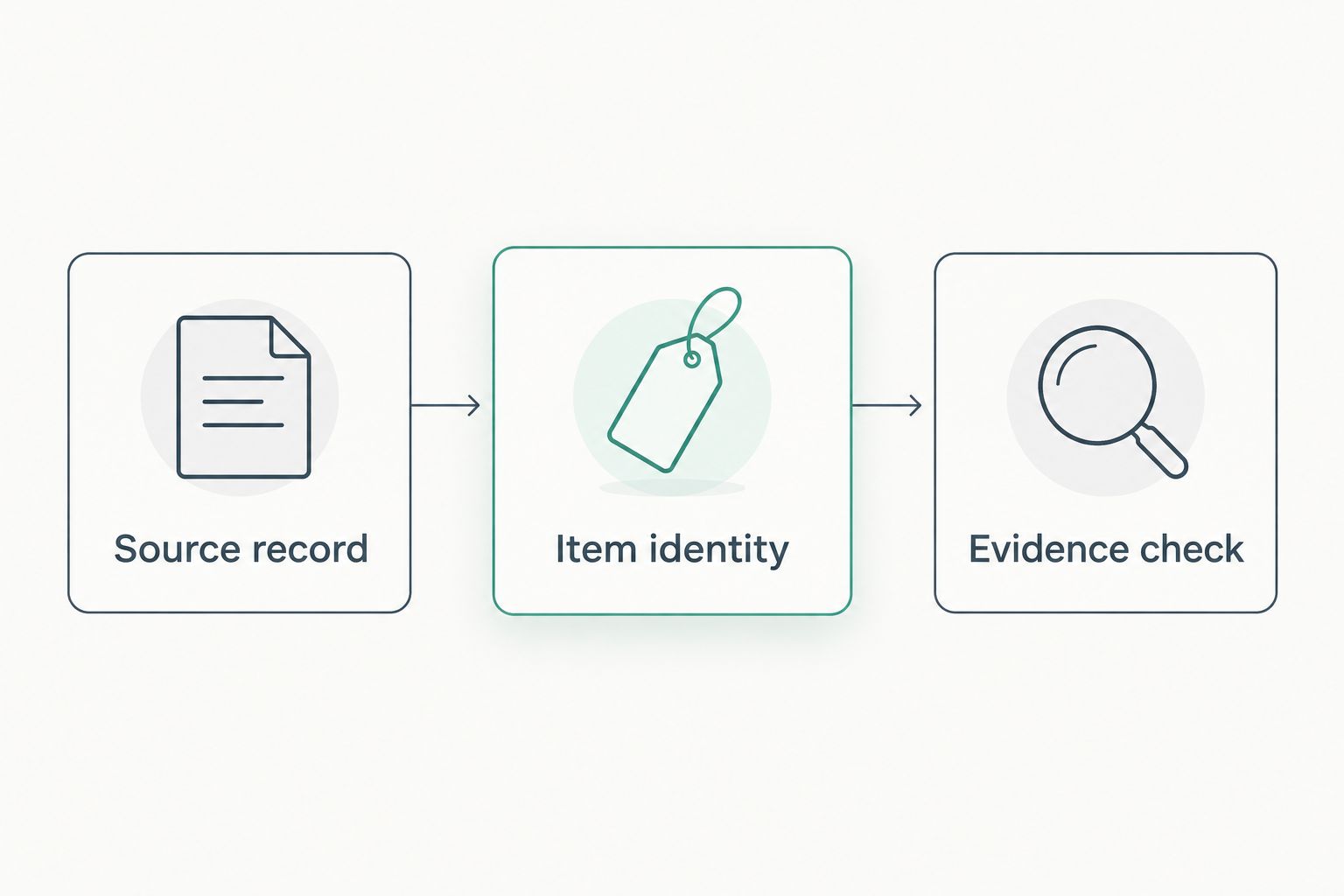
- Create the source record. Enter the actual invoice and lot references in your intake register. Preserve the original wording of the auction description separately from your proposed customer-facing description. Do not silently replace the source text as you edit.
- Assign the item identity. Give each independently sold piece a unique internal SKU. For this workflow, use 1 SKU per independently sold item. A pair of earrings sold together remains a single sale unit; separately sold pieces need separate records.
- Run the evidence check. Match the received piece to the lot description and invoice. Record visible marks, measurements, condition observations, and documents supplied. Distinguish what you observed from what the seller stated and what an independent report establishes.
- Separate unresolved claims. Flag uncertain gemstone identity, treatment, maker attribution, age, or metal content for review. Do not convert an uncertain source statement into a definitive product claim. Keep the item in the inspection stage until the wording is supportable.
Expected result: your intake register connects the purchase, physical piece, SKU, and evidence without relying on memory. For Jewelryroom.com auction purchases, preserve the actual transaction references rather than inventing a source identifier that looks official.
Create the Shopify product draft
- Open Products in Shopify admin and select Add product. Enter a factual Title that identifies the piece without adding unsupported maker, gemstone, or period claims. Use the same internal naming convention across your intake register and product records.
- Write the Description from your verified intake notes. Describe the piece's relevant characteristics and condition in plain language. Keep internal purchasing notes, invoice documents, and unresolved questions out of the public description.
- In Media, add photographs you own or have permission to use. Include views that help a buyer understand the piece and its condition. Do not use an attractive auction photograph as a substitute for checking the received item.
- Enter the internal identifier in SKU in the product's inventory details. If the product has variants, assign the SKU to the correct variant. Do not create size or material variants for physical versions you do not possess.
- Set Status to Draft, then select Save. Record the Shopify product reference in your intake register. Reopen the saved record and confirm that the title, SKU, photographs, and description belong to the same physical piece.
Expected result: a saved product draft exists, with a traceable SKU and no dependence on publication to complete intake. In your 2026 intake procedure, require this saved-record check before anyone enters the final quantity.
Configure inventory tracking and location
- Open the saved product and find its Inventory section. Enable Track quantity for the item or relevant variant. Tracking is necessary for this workflow because the product record must reflect a counted physical sale unit.
- Keep Continue selling when out of stock unchecked for a unique auction piece. This setting is a selling control, not a substitute for inspection. Review it explicitly rather than assuming a copied product inherited the correct configuration.
- Select the receiving location where the piece is actually held. If your store uses multiple locations, confirm the location name before editing. A correct total assigned to the wrong location still creates a fulfillment problem.
- Enter the verified quantity. For a unique piece received and cleared for sale, the count is 1 unit. If the product record is being prepared before receipt, use 0 units and retain the draft status; do not count a winning notification as a physical receipt.
- Select Save, reopen the product, and check the SKU, location, tracking setting, and saved quantity together. Then record the completed inventory entry in your intake register so another team member does not repeat it.
Expected result: the saved inventory record matches the physical count at the correct location. Never add the same received unit again merely because the intake record was reopened.
Review the listing and release it
- Compare the Shopify draft with your inspection record. Check that measurements, condition disclosures, material descriptions, and document references agree. If a report applies only to a stone, do not imply it certifies the entire finished piece.
- Review the photographs and description together. A visible repair or missing component needs clear wording, not just an image that a buyer must interpret. Remove unsupported statements instead of softening them with promotional language.
- Check the intended sales-channel selections and fulfillment setup. Confirm that the product is assigned to the channels where you intend to sell it. Product status and channel selection are separate checks; inspect both before release.
- Change Status from Draft to Active only after approval, then select Save. Review the customer-facing listing through the intended channel. Confirm that the displayed content matches the approved draft and that the correct item photographs appear.
Expected result: the published listing represents the inspected piece, while your private register retains the purchase trail. Record the review date and reviewer in your 2026 intake log so later corrections have an accountable starting point.
Update the existing product after inspection changes
A second workflow applies when new information arrives after you create the draft: update the existing product rather than creating another one. This is useful when a condition review, measurement, or supporting report changes the listing.
- Find the intake row using the source reference and SKU. Open its recorded Shopify product reference. Confirm the match before editing; a similar title is not enough to identify a unique piece.
- Update the relevant Description, Media, or inventory details. Record what changed and why in your private intake register. Keep the original source documents intact rather than rewriting them to match the new conclusion.
- Leave the product in Draft while the change remains unresolved. If an already published claim is inaccurate, stop presenting that claim to customers while you review it. Recheck the channel-facing result after saving the correction.
- Recount only when the physical situation changes. A revised gemstone description does not create another unit. An invoice correction does not justify increasing the item count either.
Expected result: one physical piece still maps to one product record, with an understandable history. This manual update workflow does not require an auction webhook or a connector.
Troubleshooting
The same piece has two product records
Compare the source reference, photographs, and SKU before changing anything. Keep the record tied to your actual sales history, reconcile its inventory, and remove the duplicate from selling channels. Mark the discarded reference in the intake register so it is not recreated.
The inventory number keeps increasing
Repeated intake is usually the process failure to check first. Compare each adjustment with a physical receipt, then recount the item. Use the saved product reference to update the existing record instead of treating every spreadsheet review as a new delivery.
The quantity appears under the wrong location
Open the product's inventory details and inspect the location-level quantities. Correct the allocation to match where the piece is held, then check the store's fulfillment configuration. Do not add another unit at the correct location while leaving the original entry untouched.
The product went live before inspection
Return Status to Draft and review the channel selections. Check the actual customer-facing channel afterward. Add draft status to your intake checklist and inspect any duplicated-product or import process that bypassed the review gate.
The auction description and received piece disagree
Pause publication and preserve the invoice, source description, photographs, and inspection notes. Seek clarification through the applicable transaction process. Do not resolve the disagreement by copying the more favorable description into Shopify.
Customize your workflow
Automate data preparation before you automate publication. Start with consistent fields, unique identifiers, and a completed-intake marker. Those controls remain useful whether you enter products manually or later commission an integration.
For a custom integration, require an explicit source event and documented access before designing triggers. A developer needs a dependable way to identify each purchase, match an existing Shopify product, and reject duplicate processing. Do not assume Jewelryroom.com provides a particular API, export, or Shopify connector.
Keep jewelry-specific review outside automatic approval. Software can move text; it cannot establish that a maker attribution or gemstone description is correct simply because the source field contains it.
For your 2026 workflow review, test the awkward cases: a repeated invoice, a multi-piece lot, an inspection hold, and a corrected description. The useful outcome is not merely a created product. It is the correct product, quantity, location, and publication state after each case.
FAQ
How do I move jewelry auction wins to Shopify inventory?
Record the purchase and source references, inspect the received piece, create a Shopify product draft, and enter its verified quantity at the receiving location. Publish only after reviewing the description, photographs, and supporting evidence.
Does this workflow require a Jewelryroom.com Shopify integration?
No. This workflow uses your purchase documents, an intake register, and Shopify's product and inventory controls; it does not depend on a native Jewelryroom.com connector.
Should I create a Shopify product as soon as I win an auction?
You can prepare a draft after a confirmed win, but the winning notification is not proof of physical receipt. Keep the product in Draft and do not count an unreceived piece as received inventory.
What quantity should I enter for a unique jewelry piece?
Enter 1 unit after you receive, inspect, and clear the independently sold piece. If an auction lot contains separately sold pieces, create the appropriate separate product records rather than treating the whole lot as interchangeable units.
Can I copy the auction description into my Shopify listing?
Use the auction description as source material, not as automatic approval for every claim. Verify the wording, disclose relevant condition findings, and use only photographs you own or have permission to publish.
Is manual entry better than a Shopify CSV import for auction jewelry?
Manual entry is the better fit for individually reviewed pieces; CSV imports suit consistent, checked batches. Both methods still require item identification, inspection, and a publication review.
How do I avoid duplicate jewelry products in Shopify?
Assign a unique SKU and save the Shopify product reference in your intake register. Check those identifiers before creating or updating a product, and never add quantity twice for the same physical receipt.
One last thing
A better description must never increase the item count. That distinction catches a subtle intake error: treating updated information as a new receipt. Keep document updates, physical receipts, and publication approval as separate actions, even when the same person handles all three.