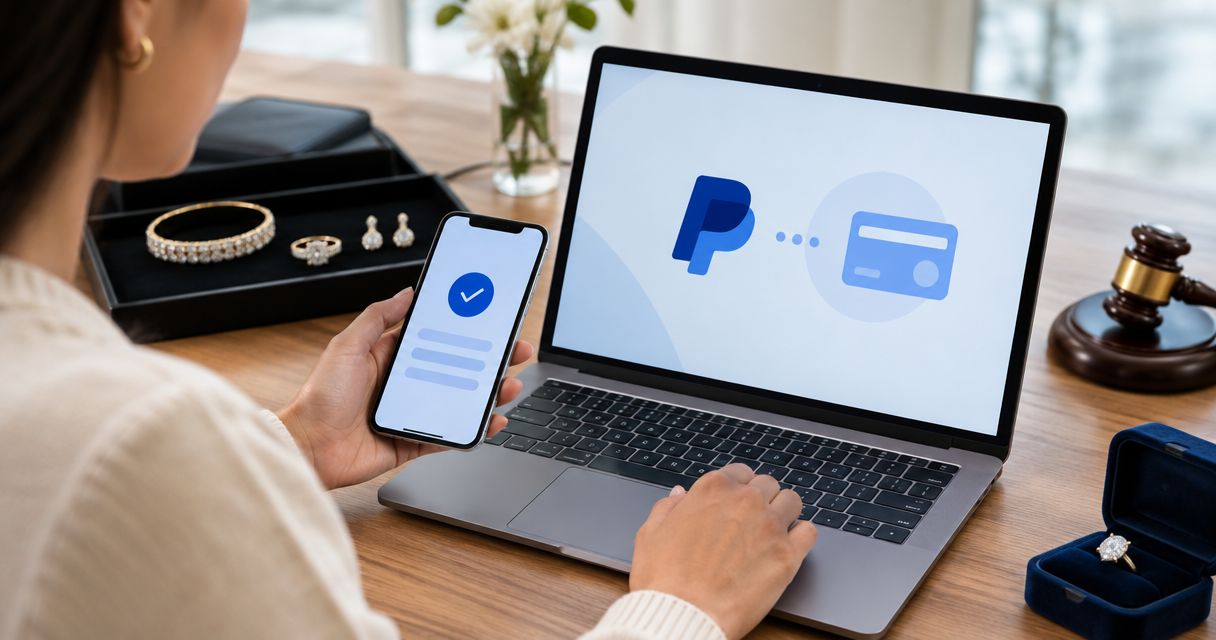
Instead of copying payment details between messages, pay your jewelry auction invoice with PayPal through the verified invoice’s payment option, then match the transaction to your auction record. Use this workflow only when the seller offers PayPal; linking a card to PayPal does not connect PayPal to an auction account or settle an invoice.
- To pay jewelry auction invoice with PayPal, start with the verified seller invoice, not a separate money transfer.
- Jewelryroom.com jewelry auction buyers should use PayPal only when their invoice offers that payment method.
- Check the recipient, currency, shipping address, and funding source before authorizing payment.
- Keep the invoice, PayPal transaction details, and seller’s payment acknowledgment together.
Why this matters
Connecting a funding source is not the same as paying an auction invoice. PayPal handles the payment authorization, while the seller must associate that payment with the correct purchase. A successful sign-in alone proves neither step is complete.
For Jewelryroom.com jewelry auction buyers, the best PayPal workflow starts with a verified invoice. Do not treat a payment request as authentic simply because it names a ring, gemstone, or auction lot you recognize.
Use this 2026 payment checklist to keep the purchase record and payment record aligned. The goal is a traceable payment for the correct invoice—not merely a transfer to an email address.
Before you start
- Have the purchase records ready. Keep your winning-lot reference, invoice number, seller details, and intended delivery address together. Confirm that the invoice actually offers PayPal before preparing a PayPal payment.
- Have access to your own PayPal account. Be ready to complete account verification and review an eligible funding source. Follow any instructions PayPal displays for your account rather than assuming every linked method works for every transaction.
- Watch for the non-obvious gotcha: payment address and delivery address are separate checks. Correcting an address in your auction account does not prove that the same address appears in PayPal checkout. Resolve any mismatch before authorizing the transaction.
Do not ask someone else to sign in for you or send a verification code to the seller. Complete PayPal authentication yourself, inside the PayPal app or a verified PayPal page.
Verified invoice
Establish the payment starting point
- Open the auction seller’s site independently rather than relying solely on a message link. Find the invoice through your existing purchase records or follow payment instructions you have independently verified with the seller.
- Match the invoice to your winning lot. Check the item description, lot reference, invoice number, recipient details, and currency.
- Review every listed charge and the stated payment deadline. Resolve unexplained entries before opening checkout; do not alter the requested amount yourself.
- Look for the seller’s offered payment methods. Select PayPal only if that option appears in the verified payment flow.
Expected result: You have 1 verified invoice tied to the jewelry you won, with an offered PayPal payment route. If the invoice does not offer PayPal, stop this workflow and ask the seller which payment methods apply.
A request to send money separately is not interchangeable with invoice checkout. Before acting on different instructions, ask the seller to confirm how the payment will be credited to your purchase.
Keep your 2026 auction records organized by invoice number rather than item name alone. Similar descriptions can make separate purchases difficult to distinguish.
PayPal funding source
Prepare the account without sending money
- Open PayPal independently and sign in to your own account. Complete any security or identity checks PayPal requests.
- In the PayPal website, open Wallet to review your linked payment methods. The app’s navigation can differ, so use the account’s payment-method controls if you are working on mobile.
- If you need to add a card, use Link a debit or credit card in the website’s wallet flow. Enter the requested details and complete any confirmation PayPal requires.
- Review the funding choices again during checkout. Select the intended method there rather than assuming an account preference determines this particular payment.
Expected result: Your PayPal account is accessible and prepared for checkout. No auction payment has been made merely by adding or confirming a card.
Best for buyers using an existing PayPal account: Review the existing funding source before adding another. This keeps setup focused, but a linked method still must be eligible for the transaction.
Never share your PayPal password, card security code, or login verification code with the auction seller. A seller needs a payment reference to investigate a transaction—not access to your account.
Invoice checkout
Authorize the correct purchase
- Return to the verified invoice and select its PayPal option. If a separate window opens, check that you are entering credentials on PayPal’s genuine service before signing in.
- Review the recipient displayed in checkout. If the business name differs from the auction seller’s name, ask the seller to explain the relationship before paying.
- Check the invoice total and currency against the purchase record. Read any currency-conversion information shown before continuing.
- Confirm the shipping address displayed for the purchase. If it is wrong or cannot be changed, stop and resolve the issue with the seller before authorizing payment.
- Select the intended funding source and review the final payment summary. Use the final authorization control only after every detail matches.
- Allow the payment flow to finish. Save the confirmation and return to the seller’s invoice when the checkout provides that route.
Expected result: PayPal shows a transaction for the intended recipient and purchase. The seller’s invoice must still be checked separately for acknowledgment.
Submit the payment once, then check its status before retrying. A slow return page is not evidence that the payment failed. Opening a fresh checkout immediately creates avoidable uncertainty about whether you have submitted another payment.
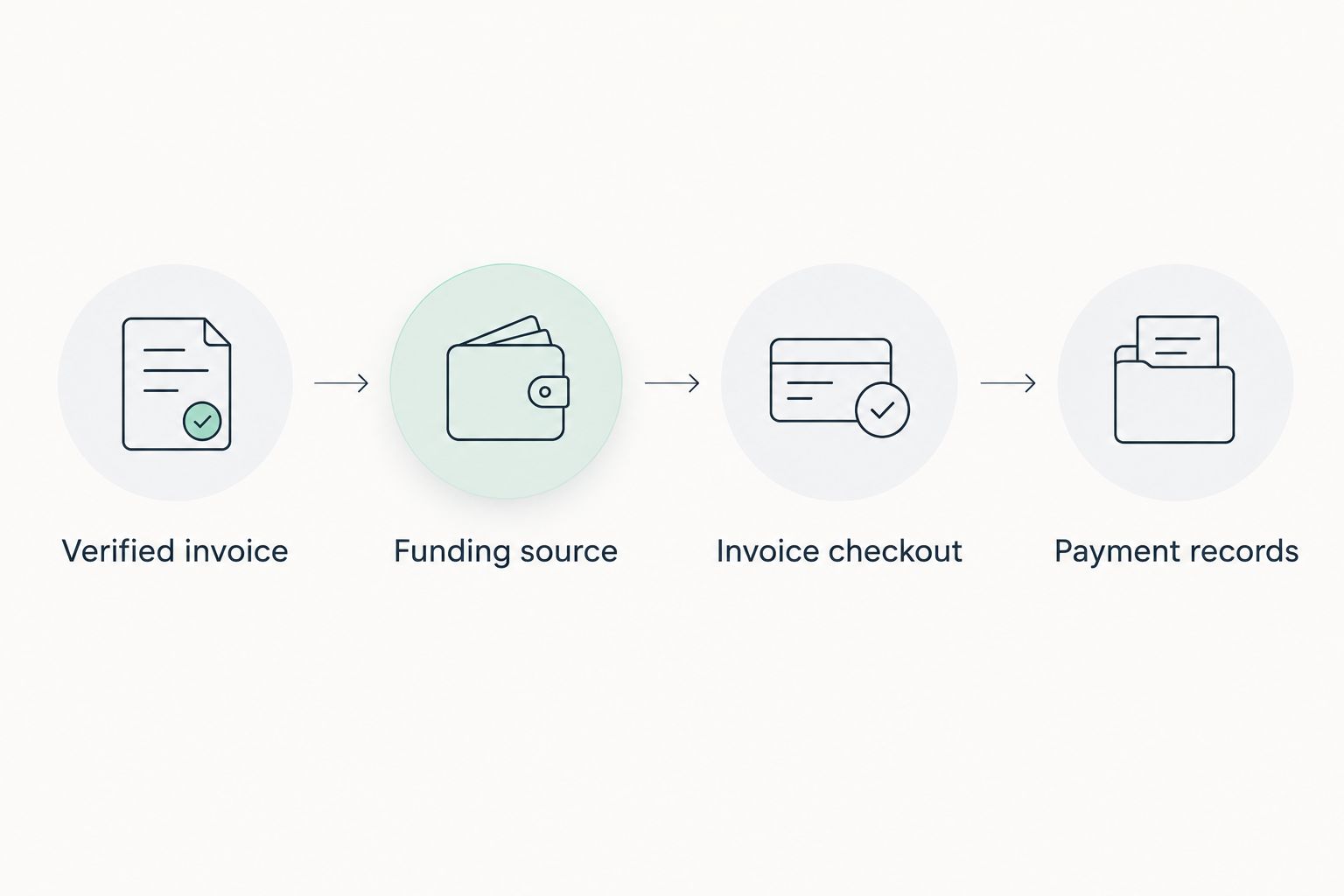
This is the central sequence for your 2026 invoice workflow: verify the invoice, prepare the funding source, authorize checkout, and reconcile the records.
Payment records
Confirm the invoice is settled
- Open Activity in PayPal and locate the transaction. Review its status, recipient, transaction ID, currency, and recorded payment amount.
- Compare the PayPal transaction with the seller’s invoice. Check whether the seller has acknowledged payment against the correct purchase.
- Save 3 records together: the invoice, the PayPal transaction details, and the seller’s payment acknowledgment. Include the lot reference in your folder or document name.
- If the records disagree, contact the seller through an independently verified channel. Provide the invoice number and transaction ID, but omit passwords, verification codes, and full card details.
Expected result: Your payment record and auction purchase record agree, or you have a specific discrepancy for the seller to investigate. Do not label the purchase settled solely because the PayPal login or checkout window closed.
Keep payment confirmation separate from fulfillment confirmation. A paid invoice does not establish when the item will ship, which carrier will handle it, or what insurance arrangements apply.
For a 2026 purchase file, retain the transaction details alongside the item description and condition information. These records serve different purposes; a payment receipt does not replace evidence of what you bought.
Alternative: pay a seller-issued PayPal invoice
A seller can also issue a PayPal invoice rather than provide PayPal checkout inside an auction payment page. Use this route only when the seller has confirmed that the PayPal invoice belongs to your auction purchase.
| Payment route | Best for | Advantage | Limitation |
|---|---|---|---|
| PayPal through verified auction checkout | Buyers whose invoice offers PayPal directly | Starts from the auction purchase record | Requires the seller to offer that checkout method |
| Seller-issued PayPal invoice | Buyers explicitly instructed to use a separate PayPal invoice | Provides a separate invoice-based payment record | Requires careful matching to the auction lot and seller |
Neither route wins automatically. Use the route documented for your purchase. A separate PayPal invoice deserves the same recipient, currency, delivery-address, and item checks as auction checkout.
- Confirm the PayPal invoice with the seller through your established contact channel. Match its description and reference to the auction invoice.
- Open the invoice through PayPal’s genuine service. Review the recipient and payment details before proceeding.
- Complete the offered payment flow, then save the transaction ID. Ask the seller to confirm that the payment has been applied to the auction purchase.
Expected result: The separate PayPal invoice and auction record identify the same purchase, with no unexplained second balance due.
If the seller revises an invoice, clarify whether the earlier invoice is canceled or replaced before paying. Do not pay both versions or manually calculate a replacement payment without confirmed instructions.
Troubleshooting
PayPal is missing from the auction invoice
Do not create a separate transfer as a workaround. Recheck the seller’s stated payment instructions and ask which methods apply to that invoice. Adding a card in PayPal does not make PayPal appear in the seller’s checkout.
PayPal will not accept the selected funding source
Read the message PayPal displays and complete any requested account or funding-source verification. Review another eligible method offered within checkout if appropriate. If the problem remains, use PayPal’s account help and tell the seller that payment is unresolved before the invoice deadline.
Checkout closes or freezes after authorization
Open PayPal Activity before starting again. Look for a matching transaction and review its status. If you find one, give the transaction ID to the seller for reconciliation instead of submitting another payment blindly.
PayPal shows a payment, but the auction invoice remains unpaid
Compare the recipient, currency, invoice reference, and transaction status first. Send the seller the relevant transaction details and request confirmation that the payment is attached to the correct invoice. Do not send a second payment simply to clear the displayed balance.
The recipient, currency, or shipping address looks wrong
Stop before authorization and ask the seller to resolve the discrepancy. If you already authorized payment, contact the seller promptly and review the transaction in PayPal. Do not assume a later account-profile edit changes the details recorded for an existing transaction.
Customize your workflow
For repeat purchases, build a simple invoice register. Use columns for seller, invoice number, lot reference, payment method, transaction ID, payment status, and fulfillment status. Keep sensitive login and card information out of it.
Best for repeat auction buyers: Use the invoice number as the shared reference across your records. The benefit is clearer reconciliation; the limitation is that you must update the register when the seller confirms payment or fulfillment.
For Jewelryroom.com jewelry auction purchases, apply the same record-matching discipline regardless of the payment method offered. The broader guide to paying a winning jewelry auction invoice covers the surrounding invoice workflow.
Before your next 2026 auction purchase, decide where you will store condition information, payment records, and shipping correspondence. Organizing those documents before checkout prevents a receipt from becoming your only surviving purchase record.
FAQ
How do I pay a jewelry auction invoice with PayPal?
Use the PayPal option offered on your verified auction invoice, or a seller-confirmed PayPal invoice for the same purchase. Check the recipient, currency, address, and funding source before authorizing payment, then match the transaction to the seller’s invoice.
Does connecting a card to PayPal pay my auction invoice?
No. Linking a card prepares a funding source but does not authorize an auction payment. You must still complete the invoice’s payment flow and confirm that the seller has credited the purchase.
Can I assume Jewelryroom.com accepts PayPal for my invoice?
No; use PayPal only if your verified Jewelryroom.com invoice or confirmed seller instructions offer it. A general PayPal account connection does not establish which payment methods apply to a particular purchase.
Should I use Friends and Family to pay for auction jewelry?
No. PayPal’s Friends and Family payment type is for personal transfers, not purchases of goods. Use the seller’s appropriate purchase-payment flow and review PayPal’s applicable protection terms rather than assuming every jewelry transaction is covered.
What should I do if PayPal shows payment but my auction invoice says unpaid?
Ask the seller to reconcile the payment using your invoice number and PayPal transaction ID. Check the recipient and transaction status first, and do not pay again until the existing transaction is accounted for.
Does paying through PayPal guarantee the jewelry is authentic?
No. Payment processing does not authenticate a gemstone, hallmark, maker attribution, or condition description. Keep the listing and supporting documents, and assess authenticity separately from payment.
Can I pay a revised auction invoice through PayPal?
Yes, when the seller confirms the revised invoice and offers PayPal for it. Verify whether the original invoice has been replaced and whether any existing payment has already been credited before authorizing another transaction.
One last thing
A payment receipt proves a payment record—not the jewelry’s identity or condition. Save the original listing and supporting documents before they become difficult to retrieve. For Jewelryroom.com buyers, a useful purchase file connects the lot description, verified invoice, and payment acknowledgment without treating any one document as proof of everything else.